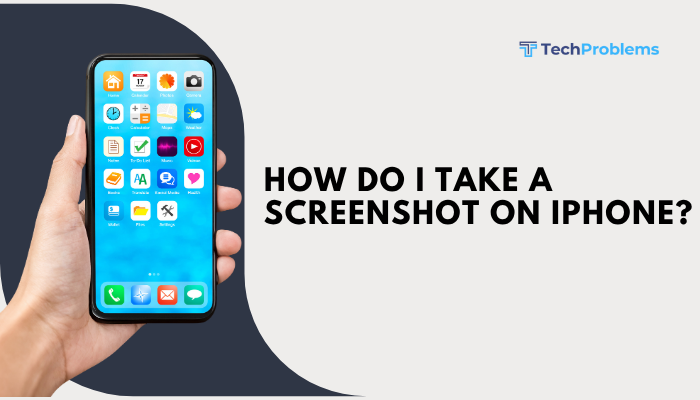
Capturing your iPhone screen is a quick way to save conversations, share images, or document error messages. Whether you’re using the latest iPhone with Face ID or an older model with a Home button, iOS offers several methods to snap and edit screenshots in seconds. This complete guide (approximately 1,500 words) covers every technique—from hardware buttons to Back Tap and AssistiveTouch—plus tips for editing, organizing, and troubleshooting.
Why Take Screenshots?
Screenshots let you:
- Save important information (directions, booking confirmations)
- Share visual instructions with friends or colleagues
- Document app errors or system glitches for support
- Capture memorable moments in chats or social media
Understanding how to capture and manage screenshots boosts your productivity and helps you communicate more effectively.
Methods for Taking a Screenshot
Depending on your iPhone model and personal preference, you can use hardware buttons, gestures, or on-screen controls.
Using Hardware Buttons
iPhone with Face ID (No Home Button)
- Prepare your screen: Navigate to the content you want to capture.
- Press and hold the Side button (right edge) and the Volume Up button (left edge) at the same time.
- Release both buttons quickly.
- You’ll see a white flash and hear a shutter sound (if your ringer is on).
iPhone with Home Button
- Open the screen you wish to capture.
- Press and hold the Side (or Top) button and the Home button simultaneously.
- Release immediately.
- Look for the flash and shutter sound.
Tip: Don’t hold the buttons too long, or you’ll trigger Power Off or Siri instead.
Using Back Tap (iOS 14 and Later)
Back Tap lets you assign screenshot capture to a double- or triple-tap on the back of your iPhone.
- Open Settings > Accessibility > Touch > Back Tap.
- Choose Double Tap or Triple Tap.
- Select Screenshot from the action list.
- Navigate to the screen you want, then tap the back of your phone twice (or three times) to capture.
Note: Back Tap only works on iPhone 8 or later.
Using AssistiveTouch
AssistiveTouch provides an on-screen menu for those who prefer a software solution.
- Enable AssistiveTouch:
- Go to Settings > Accessibility > Touch > AssistiveTouch.
- Toggle AssistiveTouch On.
- Customize Top Level Menu (optional):
- In AssistiveTouch settings, tap Customize Top Level Menu.
- Tap an icon to replace it, then select Screenshot.
- Take a Screenshot:
- Tap the floating AssistiveTouch button.
- Tap Screenshot.
Benefit: You never need to use hardware buttons.
Using Siri
You can ask Siri to take a screenshot, though it still triggers the hardware method:
- Say “Hey Siri, take a screenshot.”
- Siri flashes the screen and saves a screenshot.
Limitation: Siri must be enabled and online.
Accessing and Editing Your Screenshot
Immediately after capture, iOS lets you preview and edit your screenshot before it’s saved.
Preview and Markup
- Tap the thumbnail that appears in the bottom-left corner.
- Markup toolbar appears with options:
- Pen, Pencil, Highlighter for freehand drawing
- Text to add captions
- Shapes (arrow, circle, square) for annotations
- Crop handles to adjust frame
- Use the eraser to remove mistakes.
- Tap Done when finished.
- Choose Save to Photos, Save to Files, or Delete Screenshot.
Tip: Use Magnifier tool (available in Markup) to zoom into details.
Cropping and Rotating
- In the Markup preview, drag the white crop handles to adjust edges.
- Tap the Rotate icon (a square with an arrow) to switch orientation.
- Confirm with Done.
Applying Filters
- After saving to Photos, open your screenshot.
- Tap Edit in the top-right corner.
- Choose Filters (three overlapping circles icon).
- Select a filter—Vivid, Mono, Noir, etc.—then tap Done.
Organizing and Sharing Screenshots
Once captured, manage your screenshots effectively.
Viewing in Photos
- Open Photos, then tap the Albums tab.
- Scroll to Media Types > Screenshots to view all captures in one place.
Creating a Smart Album in macOS Photos
- Import your iPhone screenshots to the Photos app on your Mac.
- Go to File > New Smart Album.
- Set criteria: Photo is Screenshot.
- Click OK for an auto-updating album.
Sharing Screenshots
- Messages, Mail, or AirDrop: From the Photos app, tap Share (square with arrow) and select your method.
- Social Media: Post directly to Twitter, Facebook, Instagram Stories, etc., via the share sheet.
- Files and Cloud Services: Choose Save to Files or Add to Dropbox/Google Drive for documentation or backup.
Advanced Tips and Tricks
Elevate your screenshot workflow with these power user techniques.
Capture Entire Webpages (iOS 13 and Later)
- Take a screenshot of a webpage in Safari.
- Tap the thumbnail, then select the Full Page tab at the top.
- Scroll bar shows the entire page—drag or tap to preview.
- Tap Done and choose Save PDF to Files (cannot save full page to Photos).
Use Case: Great for saving long articles or receipts.
Live Text and OCR
- iOS can recognize text in screenshots:
- Open a screenshot and tap the Live Text icon (looks like text in a box).
- Select and copy text directly from the image.
Requirement: iPhone XS, XR, or later on iOS 15+.
Quick Markup Actions
- Swipe Left on the screenshot thumbnail to immediately save it to Photos, bypassing Markup.
- Press Harder (3D Touch) on older iPhones to invoke quick actions—Markup, Share, Delete—directly from the thumbnail.
Using Shortcuts for Automated Naming
- Open Shortcuts app and create a new automation:
- Trigger: Screenshot taken (under App > Photos).
- Action: Rename Recently Taken screenshot with date/time stamp or custom text.
- Activate the automation to auto-organize your captures.
Troubleshooting Common Screenshot Issues
If screenshot capture fails or behaves unexpectedly, try these fixes.
No Flash or Shutter Sound
- Check Silent Mode: Hardware button silent switch mutes the shutter sound but still captures.
- Do Not Disturb: Ensure it’s off if you expect an audible cue.
Thumbnail Doesn’t Appear
- Storage Full: Free up space in Settings > General > iPhone Storage.
- Restart iPhone: Soft-reset clears glitches.
Hardware Buttons Unresponsive
- Use AssistiveTouch or Back Tap instead.
- If buttons are damaged, schedule a repair at an Apple Store.
Screenshot Doesn’t Save
- Permissions: Reset Photos permissions:
- Settings > Privacy & Security > Photos.
- Ensure relevant apps (e.g., Shortcuts) have Read and Write access.
- Restart device to refresh system.
Additional Resources
- Apple Support – Take a screenshot on iPhone
- iMore: The Ultimate Guide to iPhone Screenshots
- Shortcuts Gallery: Screenshot Automations
Use these links to dive deeper into specialized workflows and updates.
Conclusion
Taking screenshots on your iPhone is fast and flexible. Whether you prefer hardware buttons, Back Tap, AssistiveTouch, or Siri, iOS makes capturing screen content effortless. With built-in Markup tools, you can annotate, crop, and share directly. For power users, features like Full Page captures, Live Text extraction, and Shortcut automations enhance productivity.
By organizing screenshots in dedicated albums and mastering troubleshooting steps, you’ll never miss capturing or sharing important information on your iPhone again.